Features & Enhancements
Back to updates

Boost AOV after checkout with one-click upsell

Boost
Published
May 19, 2026
New Feature

Why we built Post-purchase upsell

The post-purchase page is an underutilized opportunity in eCommerce. Customers have peak buying intent right after checkout, yet most stores only offer a simple Thank You page.

Post-purchase upsells reliably increase Average Order Value (AOV) by eliminating the friction of re-entering card and shipping info. Leveraging Shopify's native one-click post-purchase checkout extension, Boost offers merchants a clean setup to directly and measurably grow revenue from buyers already in a "yes" mindset.

How Post-purchase upsell works

Add Boost to your post-purchase page

To enable your first post-purchase offer, you have to set Boost as your post-purchase app in Shopify. Go to Shopify Admin > Settings > Checkout, find the Post-purchase page section, select Boost, and save.

Offers will not display on the storefront, even if Active in Boost, without this step.
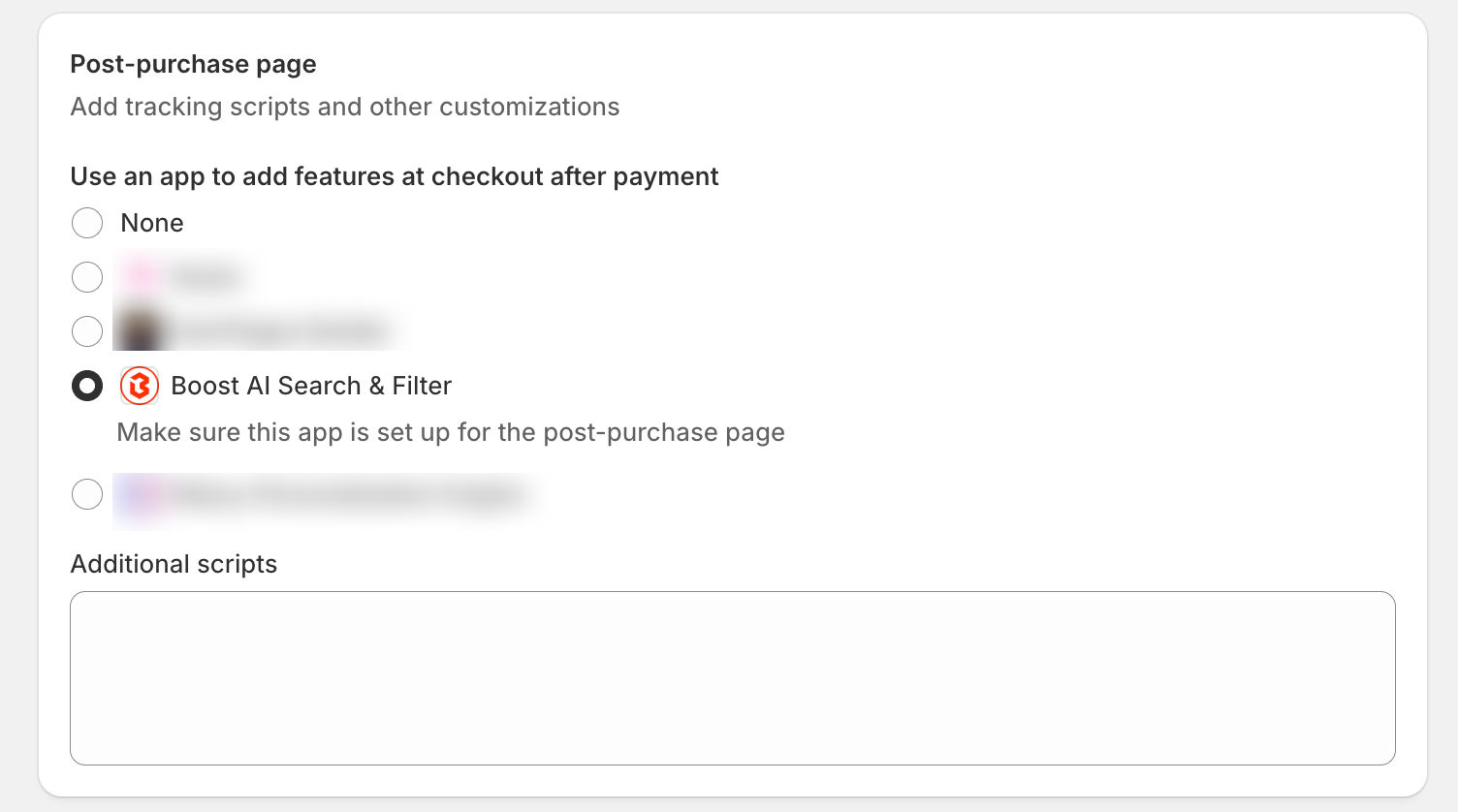
post purchase upsell shopify boost commerce

Once that is done, the setup is just two steps.

Set up your post-purchase upsell with Boost

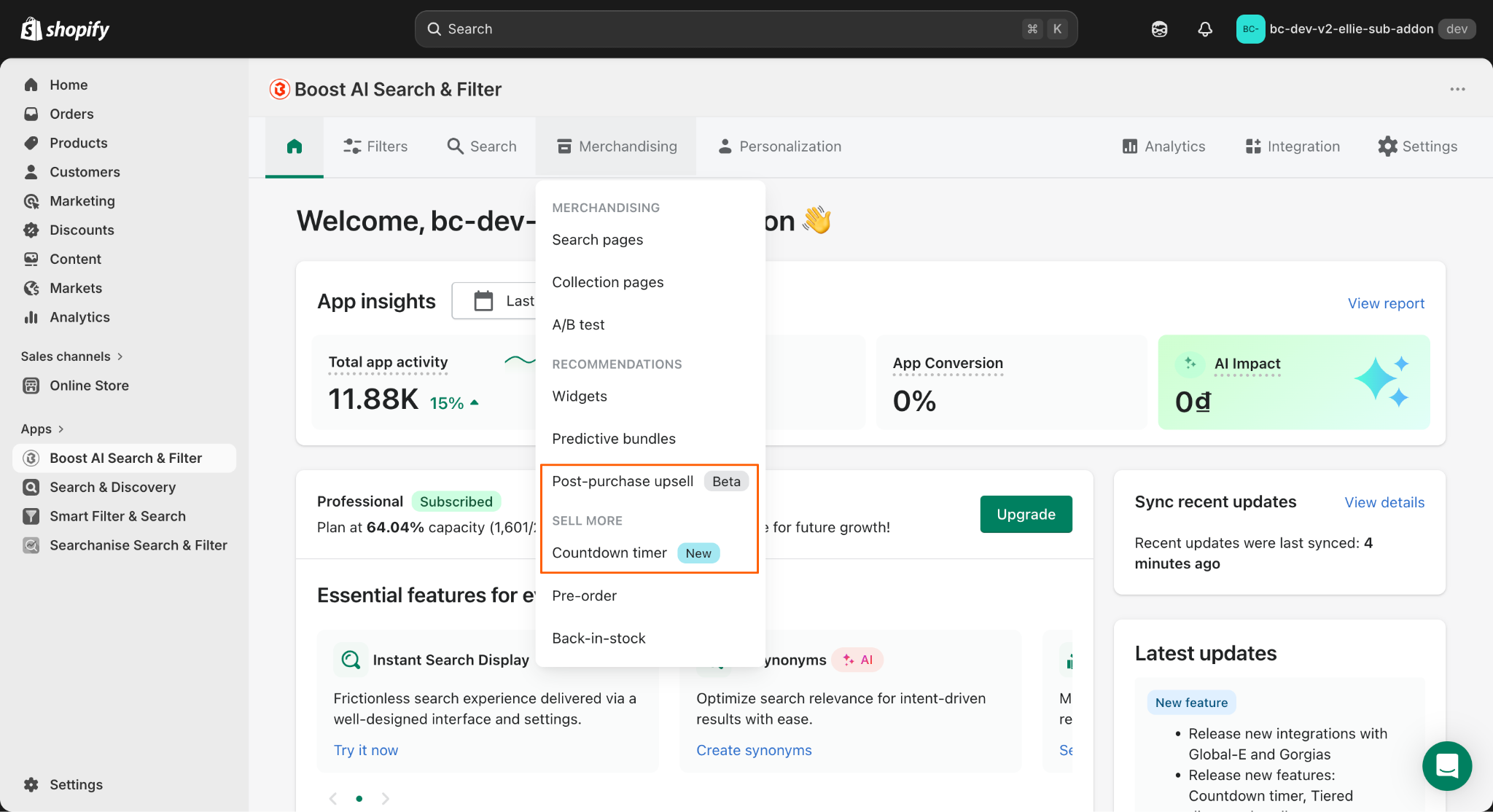
You'll find the feature under Merchandising > Post-purchase offers in your Boost admin. Click Add new offer to get started.

Step 1: Set trigger conditions. This controls when your offer appears, based on what the customer just bought. You can choose from three options:
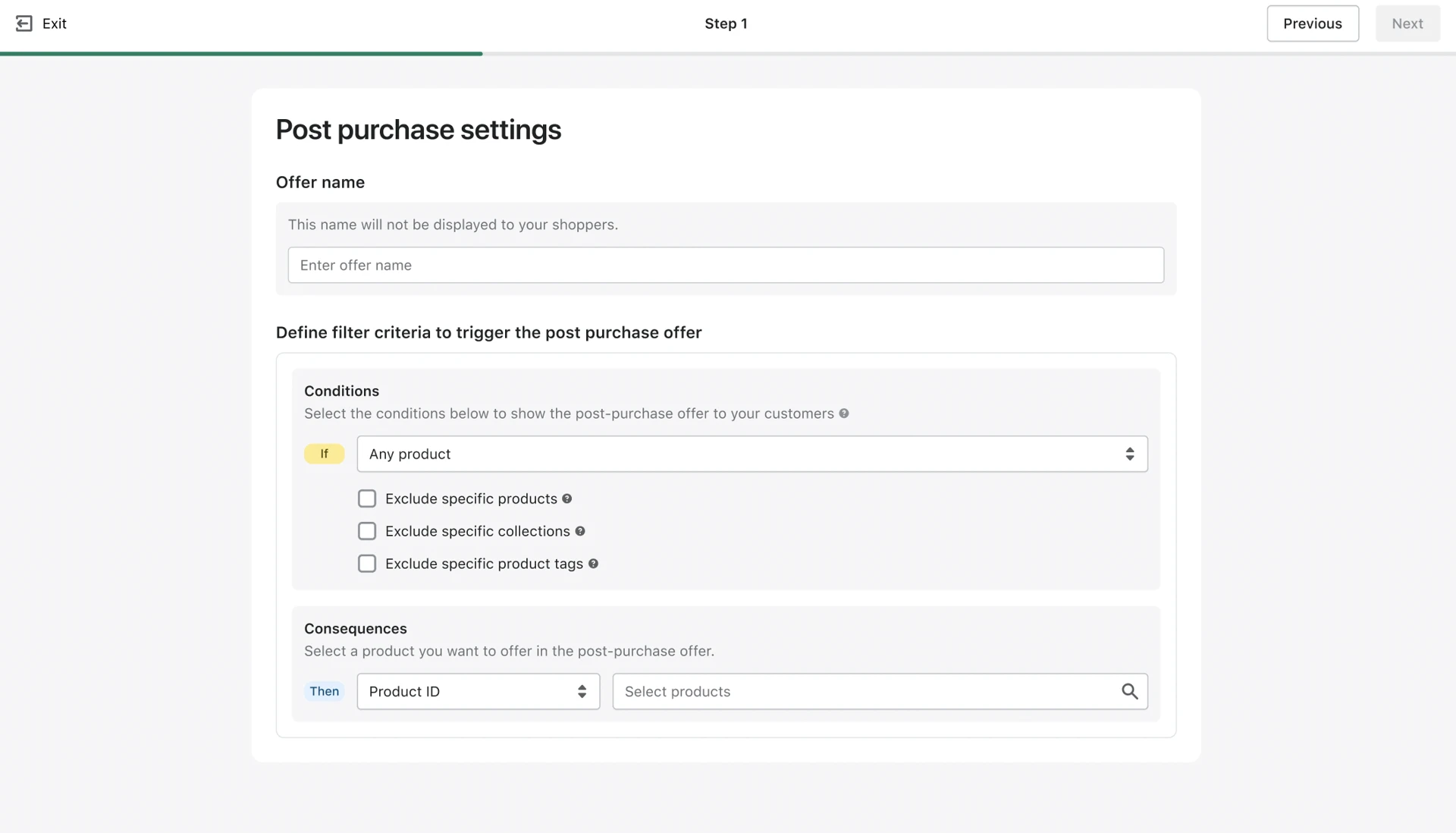
  • Any product triggers the offer after any purchase. You can optionally exclude specific products, collections, or product tags (up to 5 items in total) if there are items you never want the offer to apply to.
  • Specific products lets you define up to 15 products that, when purchased, will trigger the offer. This is useful for complementary pairings where you know exactly what pairs well with what.
  • Specific collections applies the trigger to any product within a chosen collection, which is a faster way to cover a category without listing every individual item.
post purchase upsell settings boost commerce

Step 2: Configure your offer. This is where you choose what to show the customer and how to present it. Key settings include:

  • Product selection: Pick the product you want to offer. You can change it at any point by clicking the Change button in this step. Each offer is a single-product offer.
  • Quantity limit: Set a minimum of 1 and a maximum of 1,000 units. This lets you cap the quantity per transaction if needed.
  • Discount: Choose from no discount, a percentage off, or a fixed amount off. If you add a discount, you'll be asked for the value. Percentage discounts must be under 100%, and amount discounts must be less than the product price.
  • Shipping fee: Defaults to 0, which displays as free in the offer. You can set a custom amount in your store's currency.
  • Customization: Adjust the heading (default: "Wait, There's An Offer For You"), the subheading, a countdown timer with a custom message, and the button text for both "Pay now" and "Decline this offer."

A key note on branding: post-purchase offer styling automatically matches your Shopify checkout branding. There are no separate color or font controls in Boost for this, but you can update checkout branding directly in the Shopify checkout editor.

The storefront flow is simple: after payment, an offer appears. Clicking "Pay now" adds the product to the original order and charges the customer's card on file. Clicking "Decline" directs them to the Thank You page. Clean, simple, and no extra steps for anyone

display post purchase offer boost commerce

Availability

Post-purchase upsell is available to Turbo version merchants only. For plan access:

  • New pricing plans based on Gross merchandising value: Available on all plans.
  • Legacy pricing (V3, V4): Available on the Essential plan and above, or with the Recommendations add-on.

Best practices

Match the offer to what the customer just bought

A post-purchase offer performs best when it feels like a natural follow-on to the original purchase. Think complementary products, accessories, or consumables that add value to what the customer already chose. A generic offer visible after any purchase can work, but a targeted offer tied to a specific product or collection will almost always convert better.

Add a discount, but keep it modest

A small incentive, such as 10 to 15 percent off, is often enough to tip a shopper who is already in a buying mindset. You do not need a steep discount here. The friction has already been removed by the one-click flow, so the product relevance does the heavy lifting.

Use the countdown timer

The built-in countdown reinforces the urgency that this is a one-time moment. It does not need to be overly aggressive, but a 3- to 5-minute window is enough to create a clear sense that this offer will not reappear. Boost includes a built-in countdown timer, providing a complete solution within the app.
Keep the offer text short and direct

The default headings are a solid starting point. If you customize them, aim for copy that immediately communicates the product's value: what it is, why it pairs well, and what the deal is. Shoppers are deciding quickly, so clarity wins over cleverness.

Use exclusions strategically

If you run "Any product" as your trigger, take a few minutes to add exclusions for products where a follow-on offer would feel off. High-value items, subscription products, or products that are already a bundle are good candidates to exclude so your offer always feels relevant rather than random.

Visit our Help Center for a step-by-step guide for Post-purchase upsell.

We are excited to introduce Post-purchase upsell, a brand-new feature that lets you show a one-click offer to shoppers immediately after they complete checkout, right before the Thank You page. Shoppers can accept the offer and add a product to their original order in a single click, no need to re-enter any payment or shipping information. You set the trigger conditions, pick the product to offer, configure a discount if you want one, and Boost handles the rest inside Shopify's native post-purchase flow. This is one of the highest-ROI moments in eCommerce, and it is now built directly into your Boost dashboard
Share this post

Start your 14-day free trial

Start your 14-day free trial

Start your 30-day free trial

Start your 7-day free trial

Simple & transparent pricing for all businesses

Join over 4,000+ brands already growing with Boost.
Strengthen trust and drive higher conversions.
Join over 4,000+ brands already growing with Rich Returns.
Grow your email & SMS list, increase engagement, and generate sales. Join Viralsweep today.
Address Validator offers flexible pricing that evolves with your business. Try the leading address validation tool for free now.