


Hesitating shoppers may be lost sales. Showing limited time is a proven way to reduce hesitation. Countdown timers, a high-converting ecommerce staple for years, previously required separate apps or custom code.
We wanted to bring this capability into Boost natively, with the precision and flexibility that Boost merchants expect. That means targeting specific products or collections, not just your entire store. It means three distinct timer logics to cover different promotional scenarios. And it means full control over how the timer looks, so it fits your brand rather than clashing with it.
This first release focuses on the Inline type, embedded directly into your page content, where it has the most contextual impact.
You'll find the Countdown Timer under Merchandising > Sell More > Countdown Timer in your Boost admin. Click Add new timer to start the setup, which walks you through four steps.
Step 1: Select your timer type.
For this release, choose Inline. The widget embeds naturally within your page layout rather than floating above it or being pinned to the top or bottom of the screen.
Step 2: Configure your timer settings.

This is where you define:
Step 3: Design your timer.
You have full control over the widget's appearance, including header text (default: "Hurry up!"), upsell title (default: "Sale ends in:"), timer labels, font, size, and colors for the title, subheading, timer digits, background, and button. You can add a custom call-to-action button with a link, or make the entire bar clickable. A live preview updates as you adjust settings, with options to check placement on the product page, cart page, and cart drawer before saving.
Step 4: Add the timer to your live theme.
Once your settings are saved, follow the guided steps to enable Boost Core and add the Countdown Timer app block to your product page and cart page via the Shopify theme editor. For the cart drawer, navigate to your Boost Visual Editor and enable the countdown timer widget from the Ajax cart advanced features.
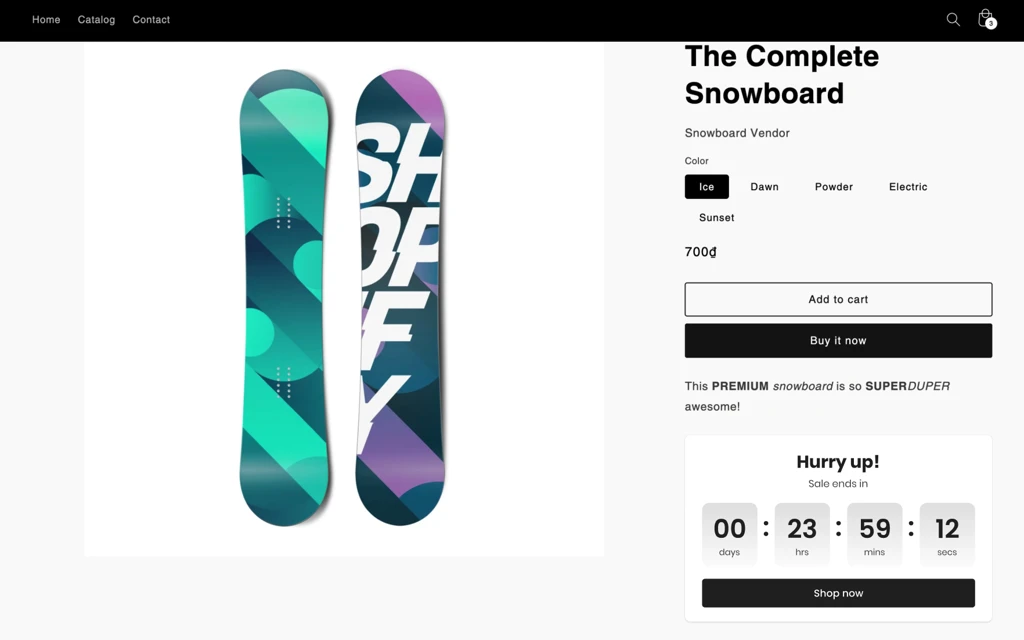
One smart detail worth noting: when the countdown reaches under 24 hours and the Days column hits zero, it hides automatically. This tightens the visual focus on hours, minutes, and seconds, which creates a stronger final push for shoppers in that last stretch.
If you run more than one timer campaign, the most recently created or updated campaign takes priority for any overlapping placements. There is no need to manually resolve conflicts. Boost handles it intelligently: if a newer campaign covers only some of the placements from an older one, the older campaign continues to show on the placements the newer one does not cover. This means you can stack campaigns confidently without worrying about unintended overrides.